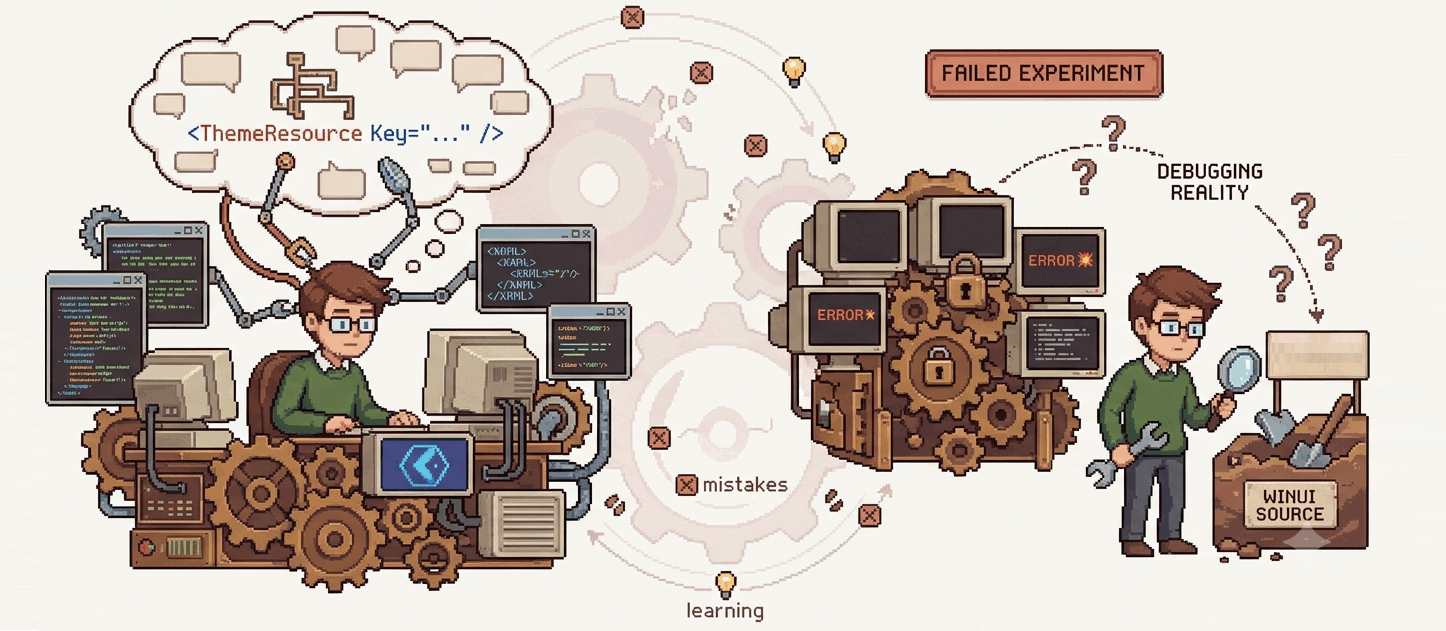
A Failed Experiment - Part Two
A Story About Overengineering, Curiosity, and Debugging Reality
In Part One, I stopped exactly at the moment where curiosity turned into framework archaeology.
Now let’s talk about the real question.
Trying to Use ThemeResources in Code
If you want to use a ThemeResource in code-behind, the first idea that naturally comes to mind is:
fullNameTextBox.Background = App.Current.Resources["SystemFillColorCriticalBackgroundBrush"] as Brush;Looks correct.
Except… it’s wrong.
This retrieves a static resource.
It will not update when the application theme changes.
So your UI becomes frozen in time while the rest of the app switches between Light and Dark like nothing happened.
Second Idea: Search Inside Theme Dictionaries
The next logical step is to look inside the theme dictionaries. Maybe we can find the resource there and use it directly?
And yes (technically they do) inside the application theme dictionaries.
You might try something like this:
var dict = App.Current.Resources.ThemeDictionaries["Light"] as ResourceDictionary;
var brush = dict["SystemFillColorCriticalBackgroundBrush"] as Brush;
And then…
💥 Exception. Resource not found.
At this point you start questioning reality.
Where Are ThemeResources Actually Stored?
Look at your App.xaml file.
You will find this line:
<XamlControlsResources xmlns="using:Microsoft.UI.Xaml.Controls" />This innocent line hides the answer.
XamlControlsResources inherits from ResourceDictionary.
And yes, this is where WinUI stores all default ThemeResources.
So instead of living directly in App.Current.Resources, they come from merged dictionaries injected by WinUI itself.
Diving Deeper - ThemeDictionaries
Inside XamlControlsResources, you’ll find:
ThemeDictionaries
 ├── Default   (Dark theme)
 ├── Light
 └── HighContrast
(Honestly, calling Dark mode “Default” is a design mystery I still haven’t solved.)
And this is the full diagram:
App.Resources
 └── MergedDictionaries
     └── XamlControlsResources
         └── ThemeDictionaries
             ├── Default (Dark)
             ├── Light
             └── HighContrast
Good
We finally found the starting point.
The Next Problem
If you manually access one dictionary:
var brush =
((ResourceDictionary)App.Current.Resources
    .MergedDictionaries[0]
    .ThemeDictionaries["Light"])
["SystemFillColorCriticalBackgroundBrush"];
It works…
but again:
✅ Resource retrieved
❌ Still static
The value will never update automatically when the theme changes.
Which means:
👉 WinUI’s ThemeResource behavior is not just lookup, it is runtime tracking.
So we must implement that behavior ourselves.
The Idea
The solution concept became surprisingly simple:
- Apply the resource after the element is loaded.
- Reapply it whenever the theme changes.
- Listen for system color updates (accent color, High Contrast).
- Track elements so the latest assigned resource always wins.
In other words: Recreate ThemeResource behavior… but in C#.
The Helper Class
I created a helper called:
ThemeResourceHelper
Its job is to simulate XAML ThemeResource binding from code.
You can read the full implementation here:
👉 https://github.com/Zakariathr22/NoXamlThemeHow It Works (Conceptually)
1. Attached Binding State
Each FrameworkElement receives an attached state object storing:
- The resource key currently assigned to it.
- dependency property to update.
2. Automatic Lifecycle Handling
When a resource is applied:
Loaded→ resource applied immediatelyActualThemeChanged→ reapplied automaticallyUnloaded→ element removed from tracking
3. Global System Tracking
The helper subscribes once to:
UISettings.ColorValuesChangedThis detects:
- Accent color changes.
- High Contrast mode toggling.
- Other system color updates.
4. Choosing the Correct Theme Dictionary
When applying a resource, the helper determines the current theme (Light, Dark, High Contrast) and looks up the resource in the corresponding dictionary.
It then applies the retrieved value to the target property.
What This Means
This approach allows for dynamic theme updates while maintaining a clean and maintainable codebase.
I’ll leave you with the code for now.
You’ll probably notice a problem in it, and that’s exactly where this experiment reached its limit for me.