Calendar Density Coloring
Enhancing CalendarView with Stripes, Tooltips, and Smarter Visuals in WinUI3
👉 Code Files:
Introduction
So, you’ve landed on my unknown blog site. That already tells me something about you: you’re tired. You’ve been clicking around StackOverflow, GitHub issues, blog posts, even ChatGPT can't help, and now you’ve ended up here.
And I know what you’re thinking:
“Please, internet stranger, I don’t want to read an essay. Just give me the code.”
Okay. Fair. I respect that. That’s why I linked the code above the fold 👆. But… if you’re still scrolling, maybe you’re slightly curious what this code actually does.
What’s in the Box?
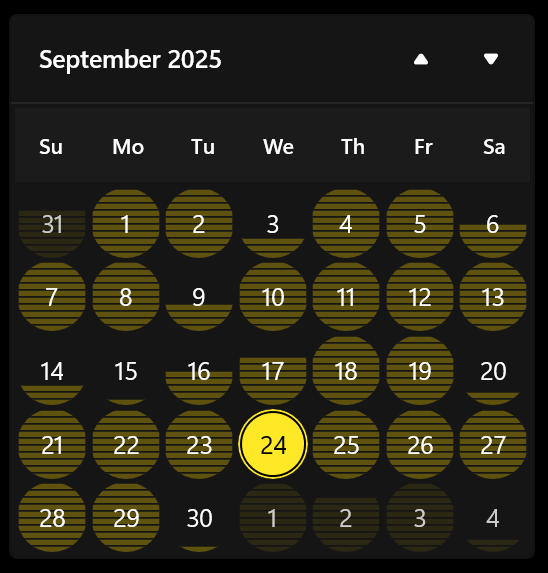
We’re building a Custom CalendarView control in WinUI
3 that:
- Shows appointment “density” (how busy a day is) with colored background stripes.
- Adds tooltips with helpful text like “3 Appointments – Today”.
- Handles Yesterday, Today, Tomorrow like a good personal assistant.
- Plays nicely with themes and re-applies tooltips/colors when you switch modes.
So basically: it’s a calendar that’s smarter than the default one, and prettier than your Outlook reminders.
The XAML
<UserControl x:Class="MyNamespace.CustomCalendarView"
             xmlns="http://schemas.microsoft.com/winfx/2006/xaml/presentation"
             xmlns:x="http://schemas.microsoft.com/winfx/2006/xaml"
             ScrollViewer.HorizontalScrollMode="Disabled"
             ScrollViewer.VerticalScrollBarVisibility="Disabled">
    <CalendarView x:Name="calendarView"
                  NumberOfWeeksInView="5"
                  Margin="0"
                  SelectionMode="Single"
                  ScrollViewer.HorizontalScrollMode="Disabled"
                  ScrollViewer.VerticalScrollBarVisibility="Disabled" />
</UserControl>
That’s it. Nothing magical here. We’re just wrapping a CalendarView inside a
UserControl, because we’re about to supercharge it with some
C#.
The C# Code (The Real Party)
Let’s break down the important parts.
1. Dependency Properties
We’ve got two:
AppointmentsData→ a dictionary mappingDateTime → Appointment Count.SelectedDate→ the currently chosen date.
Think of AppointmentsData as your calendar’s brain. It knows which days are busy
and which days are empty like your social life during exam season.
2. Constructor Magic
public CustomCalendarView()
{
    InitializeComponent();
    SelectedDate = DateTime.Now;

    calendarView.SelectedDates.Add(SelectedDate.Date);
    calendarView.SelectedDatesChanged += CalendarView_SelectedDatesChanged;
    calendarView.CalendarViewDayItemChanging += CalendarView_CalendarViewDayItemChanging;
    calendarView.ActualThemeChanged += CalendarView_ActualThemeChanged;
}
Here we:
- Select today by default.
- Hook into events so we can paint days and update tooltips.
- Listen for theme changes because dark mode supremacy.
3. Tooltips for Humans
private void AddToolTip(CalendarViewDayItem item, int count)
{
    string tooltipText = $"{count} {(count == 1 ? "Appointment" : "Appointments")}\r\n{dayLabel}";
    ToolTipService.SetToolTip(item, new ToolTip
    {
        Content = tooltipText,
        Placement = PlacementMode.Mouse
    });
}
This makes hovering over a day actually useful. Instead of just seeing a date, you’ll see:
- “5 Appointments – Today”
- “2 Appointments – Tomorrow”
- Or if it’s yesterday, just a sad “1 Appointment – Yesterday”.
4. Appointment Density Coloring
private static IEnumerable<Windows.UI.Color> GetDensityColors(int count)
{
    int cappedCount = Math.Min(10, count);
    Windows.UI.Color[] colors = new Windows.UI.Color[cappedCount];
    for (int i = 0; i < cappedCount; i++)
    {
        colors[i] = DensityColor;
    }
    return colors;
}
More appointments → more stripes. Max 10 stripes, because otherwise your calendar would look like a barcode. Color is a nice semi-transparent for theme switching.
5. Applying Tooltips and Colors
private void ApplyToolTipsAndColors()
{
    foreach (var item in FindVisualChildren<CalendarViewDayItem>(calendarView))
    {
        if (AppointmentsData.TryGetValue(item.Date.Date, out int count) && count > 0)
        {
            AddToolTip(item, count);
        }
        else
        {
            ToolTipService.SetToolTip(item, null);
        }
    }
}
This goes through all days in the calendar and updates them. Think of it as the makeup artist for
your CalendarView.
Example Usage
<controls:CustomCalendarView AppointmentsData="{x:Bind AppointmentsData}"
                             SelectedDate="{x:Bind CurrentDate, Mode=TwoWay}" />
var today = DateTime.Now.Date;
AppointmentsData = new Dictionary<DateTime, int>();
for (int i = -3650; i <= 1825; i++) // 10 years back, 5 years forward
{
var date = today.AddDays(i);
AppointmentsData[date] = Random.Shared.Next(0, 25);
}This example fills 15 years of data with random appointment counts.
Now go forth and make your calendars so colorful.