How to Switch Themes in a WinUI App
Building a clean, persistent, and multi-window aware theme system
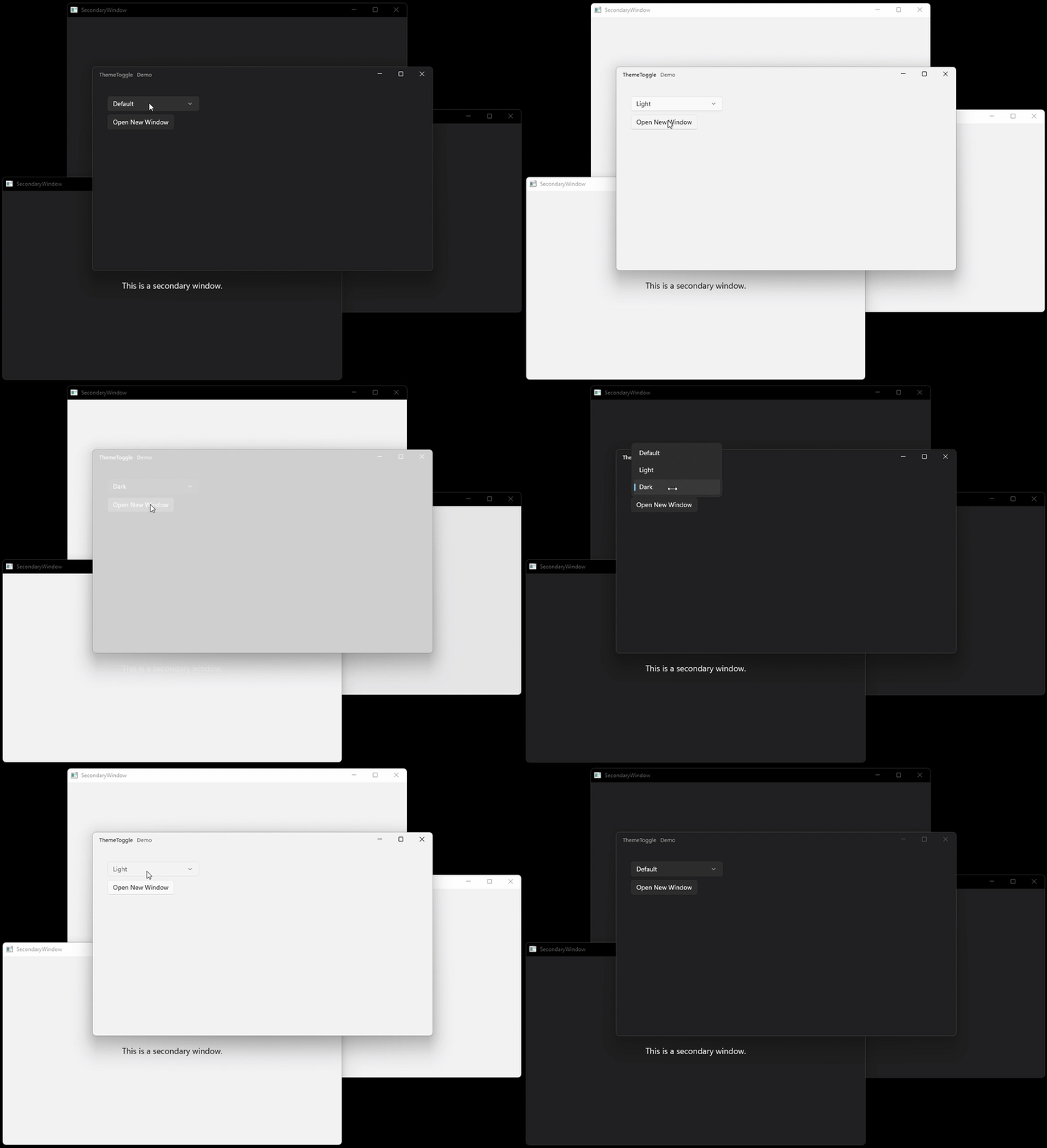
When building WinUI 3 apps with Windows App SDK 1.8, one common challenge developers
face is managing application themes
(switching between Light, Dark, or
leaving it
to the system default).
This repo shows a clean architecture for handling themes in WinUI 3 applications. Let’s break it down.
1. WindowHelper: Herding Windows
The WindowHelper class is the glue that manages
all
your app windows.
Register(Window)→ Adds a window to the internal list, wires up cleanup, and applies the current theme.ApplyTheme(ThemeOption)→ Iterates through all registered windows and makes sure the theme is synced.-
ApplyThemeToWindow(Window, ThemeOption)→ Handles the real magic:- Sets
RequestedThemeon theFrameworkElement. - Adjusts
AppWindow.TitleBarcolors for hover, foreground, and background.
- Sets
So whether you’re opening one window or ten, the theme stays consistent. It’s like the dictatorship in my country, one theme to rule them all.
2. ThemeService: The Keeper of State
This static service handles:
- Caching the current theme in
_cachedTheme. - Persistence with
ApplicationData.LocalSettings. - Broadcasting changes with the
ThemeChangedevent.
public static void SetTheme(ThemeOption theme)
{
    if (_cachedTheme == theme) return;

    _cachedTheme = theme;
    ApplicationData.GetDefault().LocalSettings.Values["AppTheme"] = (int)theme;

    ThemeChanged?.Invoke(theme);
}
That way, when the user selects a theme, it gets saved and reapplied the next time the app launches.
3. SettingsViewModel: MVVM Doing Its Job
Implements INotifyPropertyChanged and bridges the gap between UI and
ThemeService.
SelectedTheme→ Bound to the UI (SettingsPage).- When changed, it calls
ThemeService.SetTheme(value).
4. SettingsPage: The UI Layer
The page gives users a dropdown (or other UI) to pick a theme and even spawn a new secondary window.
private void NewWindowButton_Click(object sender, RoutedEventArgs e)
{
    SecondaryWindow window = new();
    WindowHelper.Register(window);
    window.Activate();
}
The key point is: every new window gets registered and keeps the theme consistent. Without that, you’d end up with one window in light mode and another in dark, like my life choices before morning tea.
5. App.xaml.cs: The Grand Conductor
The App class wires everything up:
- Initializes the
ThemeService. - Creates the main window, registers it, and applies the theme.
- Subscribes to the
ThemeChangedevent, which updates all windows viaWindowHelper.ApplyTheme.
Final Thoughts
This repo is a neat little theme management system for WinUI apps. It demonstrates how to centralize theme logic, persist user preferences, and handle multiple windows gracefully.